Realistic Art Mockup: How to Get Perspective, Scale and Placement Right
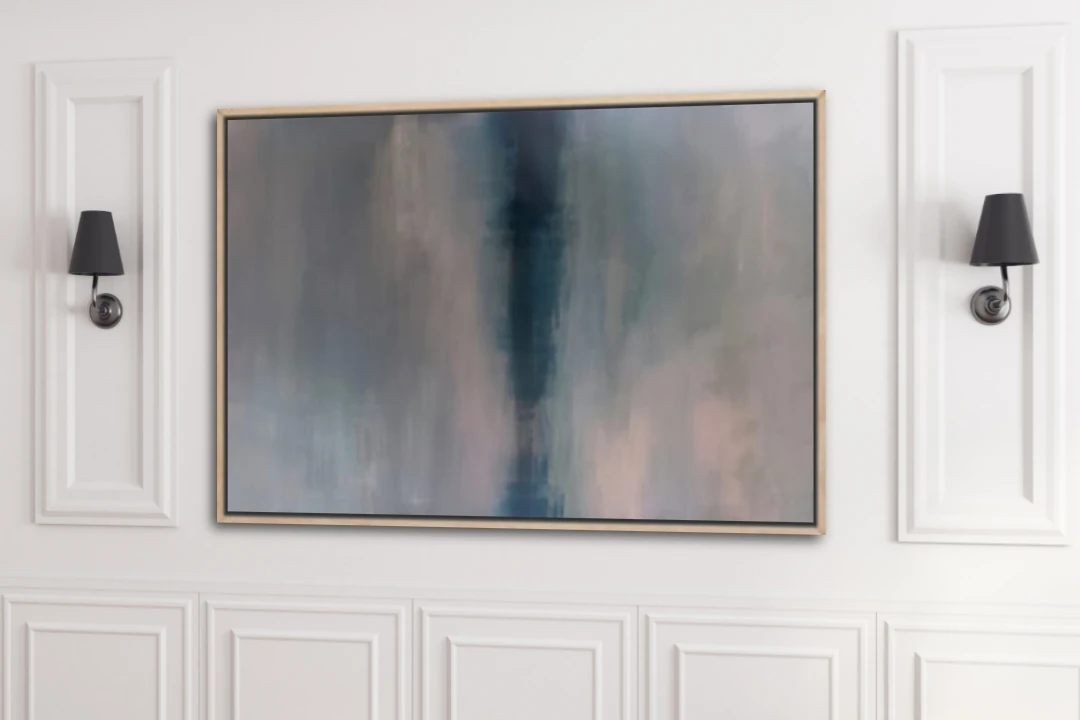
A realistic art mockup does more than place an image of a painting on a wall. It should make the artwork feel as though it genuinely belongs in the room. Perspective, scale, placement and shadows all influence whether an artwork preview looks convincing or obviously edited.
For artists selling online, this matters. Buyers cannot always see the original work in person, so a realistic room preview can help them understand its proportions, imagine it in a real interior and feel more confident about what they are considering.
What Makes an Art Mockup Look Realistic?
The most believable mockups reproduce the visual relationships that exist in a real room. The artwork should follow the geometry of the wall, have a believable size compared with nearby furniture and sit naturally within the composition.
Four details make a particularly important difference:
- Perspective: the artwork follows the angle and depth of the wall.
- Scale: its dimensions look believable compared with furniture and architectural features.
- Placement: the artwork sits at a natural height and position.
- Shadows: subtle depth helps the artwork or frame feel attached to the wall rather than pasted onto it.
Why Perspective Matters in Art Mockups
A wall photographed straight on is relatively simple, but many interiors are photographed from an angle. In these images, horizontal and vertical lines change with perspective. If the artwork remains perfectly rectangular while the wall recedes into the distance, the eye quickly notices that something is wrong.
Matching the artwork to the wall plane creates a much more natural result. This is especially useful for mockups featuring side walls, hallways, staircases, gallery spaces or rooms photographed from a corner.
Perspective and Scale Are Not the Same Thing
Perspective controls how the artwork follows the geometry of the room. Scale determines how large the artwork appears within that room. A mockup can have correct perspective and still look unrealistic if a small painting appears enormous above a sofa, or if a large canvas is shown at an implausibly small size.
When possible, use the real dimensions of your artwork as a reference. Buyers often use room mockups to judge whether a piece will work above a sofa, bed, console table or other furniture, so believable proportions are an important part of the presentation.
How to Position Artwork Naturally in a Room
Good placement depends on the composition of the interior. Instead of simply centring every piece on the image, consider the wall area and the furniture beneath it. The artwork should feel visually connected to the room.
- Leave enough breathing room around the artwork.
- Avoid placing the work unnaturally close to the ceiling.
- Use nearby furniture as a visual reference for scale.
- Keep the artwork aligned with the wall rather than the camera.
- Choose an interior that complements the dimensions and orientation of the piece.
Use Shadows Carefully
A completely flat artwork can look as though it has been digitally pasted onto a photograph. A subtle shadow can add depth, particularly when presenting framed art or canvas.
The key is restraint. Heavy or dramatic shadows may make a mockup less believable if they do not match the lighting in the room. The goal is to support the illusion, not draw attention away from the artwork.
Choose a Room That Helps the Artwork
Realism is not only technical. The interior itself affects how viewers perceive the piece. A large vertical painting may work beautifully on a tall, narrow wall, while a wide landscape can feel more convincing above a sofa or sideboard.
Using several environments can also help potential buyers picture the same artwork in different styles of home. InsituArtRoom includes 9 free interiors, while Premium provides access to the wider interior collection for creating different presentations.
How to Create a Realistic Art Mockup With InsituArtRoom
InsituArtRoom is designed to make this process easier without requiring artists to build every scene manually in complex editing software. You can upload your artwork, choose an interior and adjust its presentation directly in the app.
- Upload a high-quality image of your artwork.
- Select an interior that suits the artwork's orientation and style.
- Adjust the artwork's size and position.
- Use perspective controls when the wall is viewed at an angle.
- Add or adjust a frame and shadow when appropriate.
- Export the finished mockup for your portfolio, website, marketplace listing or social media.
If you want to explore the broader process, see our guide to art mockups for artists or learn how to simulate your art in interiors.
Where Can Artists Use Realistic Art Mockups?
Once created, a mockup can become part of several areas of your art business. The same artwork can be presented differently depending on whether you are trying to attract attention, explain scale or help someone make a buying decision.
- Online shops: add context to artwork listings.
- Artist websites: show how work can look in real interiors.
- Portfolios: combine clean artwork photography with contextual presentations.
- Social media: create more varied visual content without staging a new photo shoot.
- Collector presentations: help clients imagine a work in a residential or professional setting.
For portfolio-specific advice, read How to Make an Art Portfolio. If your goal is selling, our guide to selling art online covers more of the process.
Mockup vs Augmented Reality: What Is the Difference?
A mockup is a prepared image showing artwork in a selected interior. It is ideal for listings, portfolios, websites and social media because the artist controls the presentation.
Augmented reality serves a different purpose. With InsituArtRoom's View in your room feature, artwork can be visualized on a real wall, helping viewers understand how a piece could work in their own space. You can learn more in our guide to augmented reality for artists.
Common Art Mockup Mistakes to Avoid
- Making the artwork much larger or smaller than its real proportions suggest.
- Ignoring the angle of a wall photographed in perspective.
- Using shadows that conflict with the room's lighting.
- Choosing an interior so busy that it competes with the artwork.
- Using a low-resolution artwork image that becomes visibly blurred.
- Relying on only one room when different environments could help buyers understand the work.
Realistic Presentation Helps Buyers Understand Your Art
A mockup should not replace good photographs of the original artwork. Instead, the two formats work together. Clean artwork photography shows colour, texture and detail, while a room mockup provides context, proportion and atmosphere.
That combination gives online viewers more information and can make an artwork easier to imagine outside the screen. For more photography tips, see How to Photograph Artwork.
Create a Realistic Art Mockup
Upload your artwork, choose an interior and create a professional room preview with InsituArtRoom.
Create your art mockup with InsituArtRoom