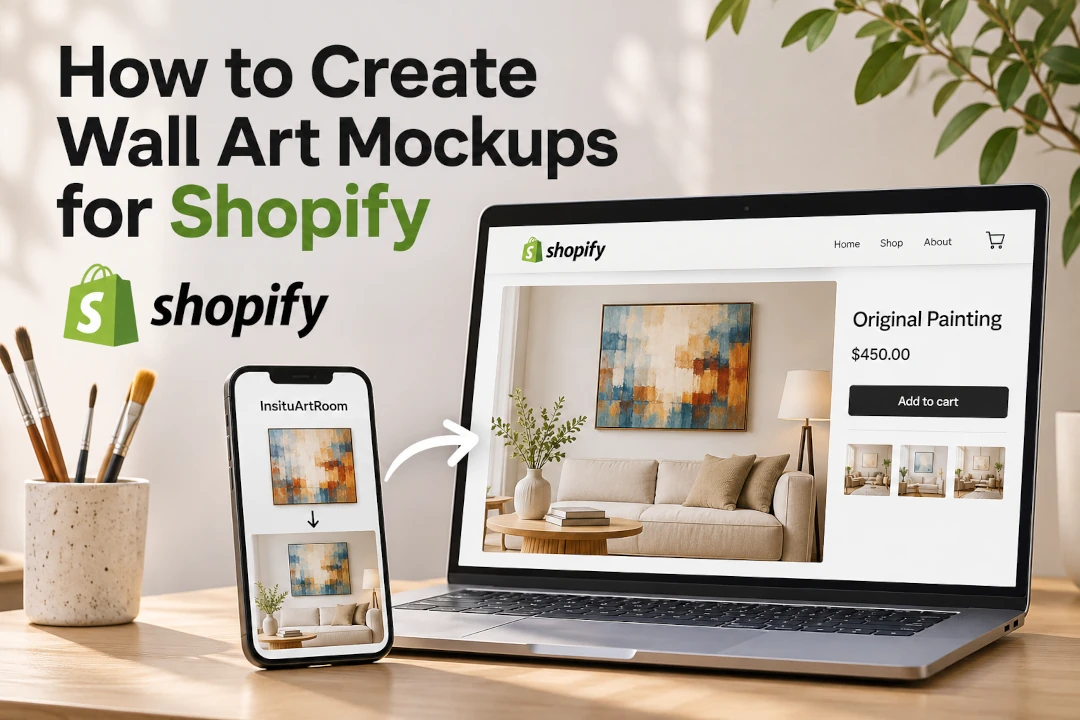
How to Create Wall Art Mockups for Shopify: A Step-by-Step Guide
If you sell paintings, art prints, or other wall art through Shopify, your product images need to do more than show the design. Buyers also want to understand how a piece might look above a sofa, in a hallway, or on a gallery wall. A realistic wall art mockup for Shopify helps bridge the gap between an artwork on a screen and an artwork displayed in a real space.
You do not need a fully furnished studio or advanced Photoshop skills to create these images. With InsituArtRoom, you can place your own artwork in styled interiors, adjust the presentation, and export visuals to use alongside your standard product photography.
In this guide, you will learn how to prepare your artwork, choose convincing room scenes, create Shopify-ready mockups, and build a product gallery that gives customers the information they need before purchasing.
What Is a Wall Art Mockup for Shopify?
A wall art mockup is a visual representation of a painting, print, or photograph displayed on a wall. Instead of showing only a flat image of the artwork, it presents the piece in a room or framed setting to communicate its scale, style, and potential placement.
On Shopify, mockups can complement your main artwork photograph. For example, a customer browsing a 50 × 70 cm print can see the design clearly in one image and then view it above a sideboard or sofa in another.
A mockup is a presentation image, not proof of how an item will look in every home. Keep product measurements, frame options, and materials accurate in the listing itself.
Why Shopify Art Stores Benefit From Room Mockups
Online shoppers cannot hold a print or stand in front of an original painting. They rely on photographs, dimensions, descriptions, and context to make decisions. Room mockups can make that decision easier by answering questions that a close-up image cannot.
- Visualise scale: show how a piece relates to furniture and wall space.
- Communicate style: demonstrate how the artwork works with different interior aesthetics.
- Improve presentation: create a consistent look across a collection or product range.
- Support marketing: reuse room images in emails, social posts, and promotional graphics.
- Build buyer confidence: help visitors imagine displaying the work, while still providing precise specifications.
Mockups are especially useful when your Shopify catalogue includes many designs but you cannot physically photograph each one in several decorated rooms.
What You Need Before Creating Your Mockups
Start with an accurate digital image of the artwork. For original paintings, photograph the piece evenly and straight on. For prints, use the final artwork file or a clean image that represents the product faithfully.
- A high-quality image of your artwork, ideally without distracting borders or backgrounds.
- The correct artwork dimensions and orientation.
- Information about whether the product is sold framed or unframed.
- A consistent idea of the rooms and visual style that fit your brand.
- Access to InsituArtRoom to create realistic interior presentations.
If you need to improve your source photographs first, see our guide to how to photograph artwork.
How to Create a Wall Art Mockup for Shopify With InsituArtRoom
Follow this workflow for each artwork you plan to list. The exact controls may vary between the app's supported platforms and versions, but the core process is to import your art, choose an interior, refine its presentation, and save the result.
Step 1: Prepare and Upload Your Artwork
Choose the clearest available image of the piece. Crop unnecessary background, check that the colours represent the original, and confirm the artwork's proportions. Then open InsituArtRoom and import the artwork you want to present.
Do not stretch a rectangular artwork to fit a square area. Keeping the original aspect ratio is essential, especially if the mockup will appear on a Shopify product page.
Step 2: Choose an Interior That Fits Your Customers
Select a room scene that supports the artwork rather than competing with it. A minimalist painting may look strong on a quiet neutral wall, while a bold abstract piece might benefit from a more expressive setting.
InsituArtRoom offers 9 free interiors to get started, with a larger interior selection available through Premium. Try more than one setting before deciding which image communicates the artwork best.
Step 3: Adjust Placement and Scale
Position the artwork so that it feels naturally displayed. Pay attention to furniture, wall proportions, and the height of the piece. Use the artwork's actual dimensions as your reference wherever the app allows you to adjust scale.
A visually appealing mockup can still mislead if a small print appears enormous. If the room image is illustrative rather than dimensionally exact, make that clear and rely on the product listing for precise measurements.
Step 4: Explore Frames and Presentation Options
If your artwork is available framed, explore frame styles that match the product or illustrate a clearly labelled styling option. InsituArtRoom supports frame and mat or passepartout presentations, helping you show how different finishing choices affect the overall look.
Never imply that a frame is included if your Shopify product is sold unframed. Add a short note such as “Room image for styling inspiration; frame not included” when appropriate.
Step 5: Save a Clean, Professional Mockup
Review the final image at full size. Check the artwork's edges, orientation, colour balance, and visual prominence. Export or save the image using the options available in your version of InsituArtRoom, then review the result before uploading it to Shopify.
For a coherent store, use a similar visual style and image ratio across product listings. Consistency makes a collection feel easier to browse.
Create Your First Shopify Art Mockup
Upload your artwork, preview it in realistic interiors, and create professional room images for your online store. Start with 9 free interiors in InsituArtRoom.
Try InsituArtRoomHow to Add Wall Art Mockups to Shopify Product Pages
Once your mockup is ready, open the relevant product in your Shopify admin and add the image to its media gallery. Shopify's interface can change over time, so follow the current product-media controls in your store.
- Open the Shopify product you want to update.
- Upload the mockup as an additional product image.
- Keep at least one clear, accurate image of the actual artwork or finished product.
- Arrange the images in a sequence that answers buyers' questions.
- Add descriptive alternative text that identifies the artwork and room context.
- Preview the listing on both desktop and mobile before publishing.
A mockup is generally most useful alongside, rather than instead of, a straightforward product image. Buyers should be able to inspect the design without furniture, shadows, or decorative distractions.
What Order Should Shopify Product Images Follow?
There is no universal order that works for every art store. A practical starting point is to lead with the image that communicates the product most clearly, then add contextual views and close-ups.
| Image | What it should show | Why it helps |
|---|---|---|
| 1. Main product image | Artwork clearly visible, with minimal distractions | Lets shoppers identify the design immediately |
| 2. Room mockup | Artwork displayed in a realistic interior | Provides styling and placement context |
| 3. Detail view | Texture, surface, paper, or print detail | Communicates materials and finish |
| 4. Alternative setting | Another room or compatible frame presentation | Helps shoppers picture different spaces |
| 5. Size information | Clear dimensions or a size guide | Reduces uncertainty about the product |
For original artwork, consider adding a photograph of the physical piece and close-ups of its surface. For prints, show the available sizes and clarify whether the listing includes a frame.
How Many Mockups Should You Use Per Product?
More images are not automatically better. Start with one or two strong room mockups that provide distinct information. If a second image shows nearly the same angle, room, and styling, it may add little value.
Use additional mockups when they answer a real question, such as how a large canvas looks above a sofa versus how a smaller print fits a narrow hallway. The goal is clarity, not filling every available media slot.
Choose Room Styles That Match Your Artwork
Think about the people who are most likely to buy your work. A store selling contemporary abstract paintings may benefit from modern interiors, while a shop offering botanical prints may prefer softer, natural spaces.
- Minimalist interiors: useful when the artwork needs to be the focal point.
- Warm living rooms: help shoppers imagine the piece in an everyday home.
- Office settings: work well for art aimed at workspaces or studios.
- Gallery-style walls: can support fine-art collections and professional portfolios.
- Coordinated rooms: help establish a consistent visual identity across a Shopify collection.
Keep the artwork itself unchanged. The room should add context, not distort the colours, proportions, or product details customers expect to receive.
Wall Art Mockups for Original Paintings vs. Art Prints
Original paintings and reproduction prints need slightly different treatment. An original work may have texture, depth, irregular edges, or a distinctive surface that a room mockup alone cannot show. Pair the mockup with photographs of the real piece.
For prints, accurate dimensions, paper information, edition details where relevant, and framed or unframed options are especially important. If you sell multiple sizes, make sure each size is clearly labelled rather than relying on one mockup to represent every variation.
Learn more about presenting work professionally in our guide to making an art portfolio.
How to Make Shopify Art Mockups Look Realistic
The most convincing mockups are usually the simplest. Choose a scene with natural visual balance, avoid placing art too high or too low, and check that the artwork does not appear to float or tilt unnaturally.
- Preserve the artwork's correct proportions.
- Use rooms with enough empty wall space.
- Choose a frame that complements, rather than overwhelms, the artwork.
- Avoid using dramatically different colour treatments from one image to another.
- Keep styling consistent across products in the same collection.
- Use clear product photographs alongside illustrative room scenes.
SEO Tips for Shopify Wall Art Mockup Images
Mockups can support product-page usability, but adding them does not guarantee higher search rankings. Make sure the page clearly describes the actual product and that image details are useful rather than stuffed with keywords.
Use descriptive filenames, such as blue-abstract-painting-living-room-mockup.webp, and write natural alt text. For example: “Blue abstract painting displayed above a wooden sideboard in a bright living room.” Alt text should describe what the image shows, not repeat the same marketing phrase on every image.
Compress images appropriately so they remain sharp without creating unnecessary page weight. Shopify may process uploaded images for delivery, but you should still start with clean, sensible source files.
Can You Use the Same Mockups on Instagram and Pinterest?
Yes, provided the images accurately represent your work and fit the platform's format. A Shopify room mockup can also become a social post, a Pinterest image, or part of an email announcing a new collection.
For short-form video, InsituArtRoom also supports creating Reels from artwork presentations. You can use this type of content to direct interested viewers to the relevant product or collection page.
For more ideas, read Instagram for Artists and How to Make Art Reels for Instagram.
Common Mistakes When Creating Shopify Art Mockups
- Using mockups as the only product images: customers still need a clear view of the actual artwork.
- Showing unrealistic scale: an incorrectly sized artwork can create false expectations.
- Implying accessories are included: make frame and styling details explicit.
- Using too many similar interiors: repetitive images make product galleries harder to scan.
- Changing the artwork's colours: a room scene should not misrepresent the item being sold.
- Ignoring mobile layouts: product images must remain readable on small screens.
- Forgetting product details: dimensions, materials, and shipping information still matter.
When Does a Premium Mockup App Make Sense?
If you are testing a small collection, the free interiors may be enough to begin. As your Shopify catalogue grows, you may want more room styles so that different artworks and collections have appropriate settings.
Premium can make sense when you regularly prepare new listings, need a broader range of interiors, or create presentation content for multiple channels. The decision should depend on how often you use the tool and whether the extra options improve your workflow.
Start with InsituArtRoom's 9 free interiors, evaluate the results, and then decide whether the Premium interior collection suits your needs.
A Simple Workflow for Every New Shopify Artwork
- Photograph or export the finished artwork accurately.
- Record its dimensions, materials, and framing options.
- Import the artwork into InsituArtRoom.
- Create one clean room mockup and, if useful, a second distinct setting.
- Check proportions and save the finished visuals.
- Upload the images to the correct Shopify product.
- Add a clear description, size details, and useful image alt text.
- Preview the product page on mobile and desktop.
- Reuse the strongest mockup in relevant marketing content.
This repeatable process helps maintain a consistent presentation without requiring a new physical photoshoot for every listing.
Frequently Asked Questions
Do I need Photoshop to make wall art mockups for Shopify?
No. A dedicated art presentation app such as InsituArtRoom can help you place artwork into realistic interior scenes without manually building a Photoshop mockup.
Can I create Shopify wall art mockups for free?
InsituArtRoom includes 9 free interiors, so you can start creating presentation images and decide later whether you need the additional Premium interior collection.
Should I show the artwork with or without a frame?
Show the product as it is actually sold, and label illustrative frame options clearly. If the frame is not included, avoid presenting it as part of the purchase.
Can I use mockups for original paintings?
Yes. Room mockups can help communicate placement and scale, but they should complement real photographs that show the original painting's surface and details.
Will mockups automatically increase Shopify sales?
No image type guarantees sales. Mockups can help shoppers visualise a piece, but results depend on the artwork, pricing, product information, store experience, audience, and many other factors.
Final Thoughts
Creating wall art mockups for Shopify is a practical way to help customers picture your work in a real room. The strongest product pages combine accurate artwork images, clear specifications, and a small number of convincing interior presentations.
With InsituArtRoom, you can build this presentation without advanced design software. Start with one artwork, choose an interior that suits your style, and develop a repeatable workflow for the rest of your Shopify collection.
Make Your Shopify Art Listings More Visual
Show your artwork in realistic interiors, explore framing options, and create professional images for your Shopify store and social media. Start with 9 free interiors in InsituArtRoom.
Create Art Mockups With InsituArtRoom